Importing OVA Into VCSA 6.5 Fails
Importing an OVA into VCSA 6.5. The error that I’ve got is the one below.


Download the VMCA root certificates and install them into your PC’s “Trusted Root Certificates Authorities” list.
Step One – Download Trusted Root CA Certificates
In IE or Chrome open a web page to vCenter’s IP Address, port 443. On the right side, you’ll see a gray box labeled “For Administrators.” At the bottom there is a link called “Download trusted root CA certificates.” Click it to download a zip bundle of the certificates.

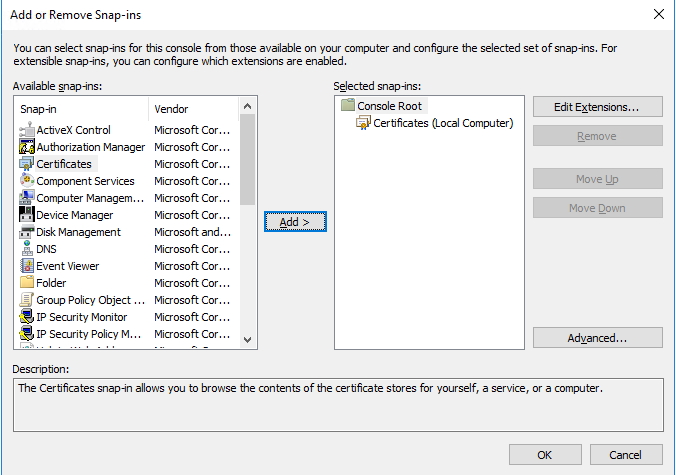
After you downloaded them, you can double click on the certificates or use the MMC to install/import each of the certificates into your local computer’s “Trusted Root Certification Authorities” container. If you haven’t done this before, it’s documented here.
If using a Firefox, please note that the certificates should be installed directly in the browser.

Step Three – Relaunch Browser
Once completed, re-launch your browser and access your vCenter using HTTPS by FQDN. Now you should see the “lock” and no certificate warnings. This is because your computer is now trusting your VMCA root certificates.

Login into vCenter and now able to deploy the OVA without any problems.
Comments
Post a Comment